by
by Spis treści
Hey, it’s been a long time since we met here. I hope you are sticking up there somehow in this quarantine. Rave and Axer reminded me of a window that I forgot to describe in the previous part of the tutorial. But that’s even better since now I can devote much more time to it. It’s an opportunity to learn something that will be useful for any ambitious creator in RM 2k3, so prepare your parietal lobes for a new piece of information!
How do I turn it on??!!
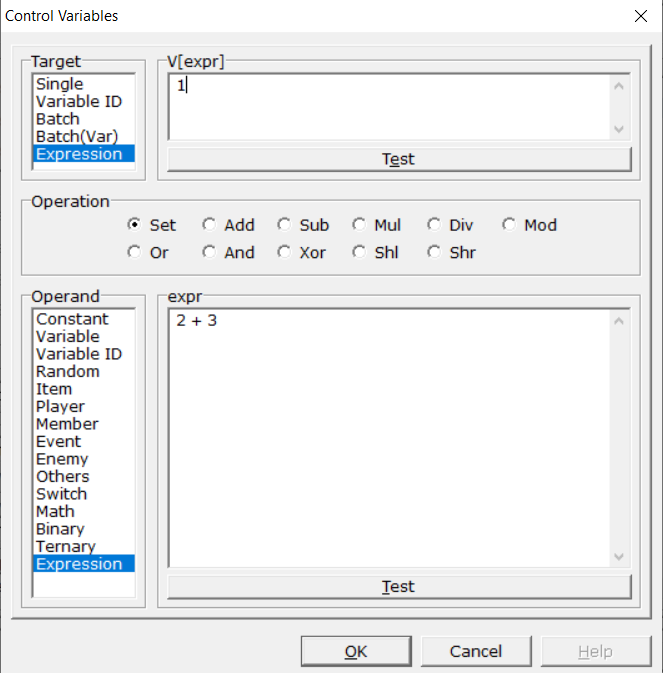
The most important aspect of the new window, apart from the obvious UI revamp where everything’s packed in one tab, is the addition of the Expression option. It allows you to write math and logic operations in an elegant concise way. With larger systems in RM2k3, we often encounter the fact that we have to click Control Variables dozens of times, which tires our precious wrists and fingers. Well, it’s all in the past now. All you have to do is to check this particular option from the top menu in the Maniacs patched editor:

And that’s it! The Control Variables window is all pimped-up!
Meat of the matter, i.e. chicken chop
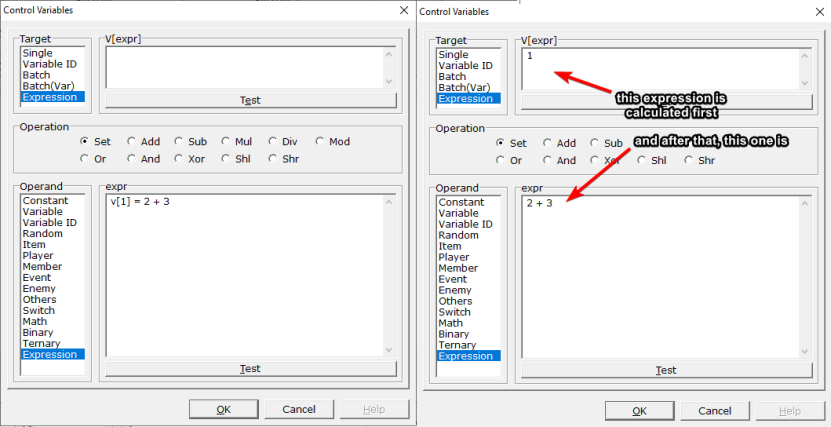
The two examples shown below present different ways of doing exactly the same thing. They set the variable number 1 to the value 2 + 3 i.e. 5.
The V[expr] box means that the result of calculations done in this field will be used to determine the ID of the variable on which we want to operate. Calculations in this field are performed beforehand.
It’s a bit confusing in my opinion, because in the expr field we can operate on many variables at once. However, if we leave the field V[expr] empty, we must remember that the command in the event window will look like this:

This is also not very readable. In that case, it doesn’t matter what we choose in Operations, whether it will be Set, Add, Sub, etc.,because the operation is defined below anyway, and the variable with ID 0 does not exist.
Later in the tutorial, all operations will be performed only in the expr field. It is more readable, at least for the sake of the tutorial, but for regular work it might be quite the opposite.
The following case is also worth mentioning:
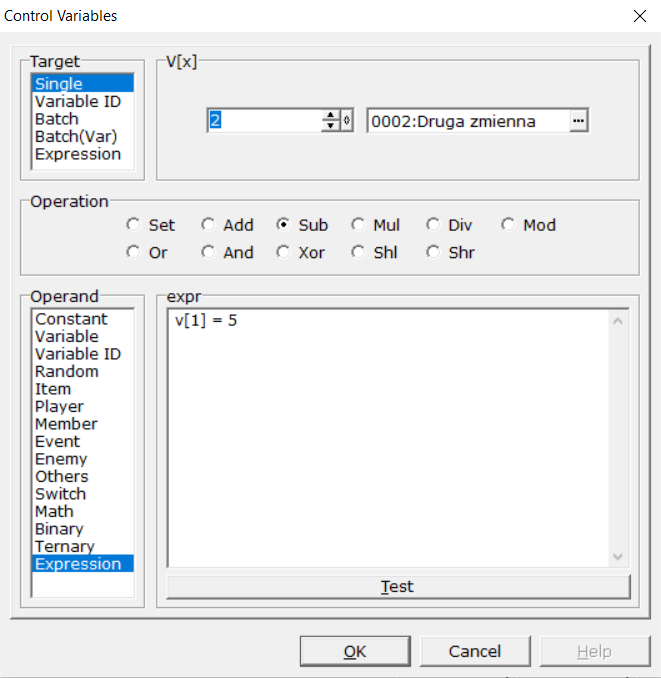
Here the variable number 1 will be set to 5, and the operation v[2] – = v[1] will be performed on the variable number 2. So, 5 will be subtracted from variable 2 (the value we set v[1] to).
Earlier there was the following notation: v [1] = 2 + 3. v[] means that we are referring to some variable. In this case to the variable number 1. We set it to the result of 2 + 3, which is 5.
Another thing worth mentioning is the Test button. In case we made any syntax errors while typing the expression, we will get a message (in English) about what is wrong.
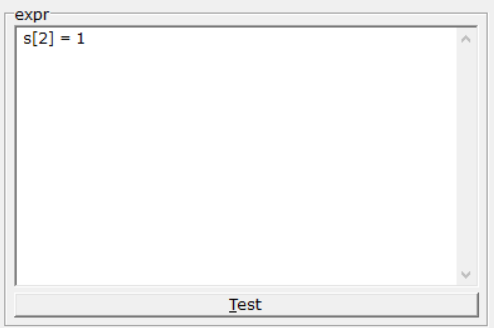
We can also refer to switches. In this case, we set the switch number 2 to True (True is 1 and False is 0).

There is also a range operator, i.e. two dots. In this example, I am setting variables 1, 2 and 3 to 8.
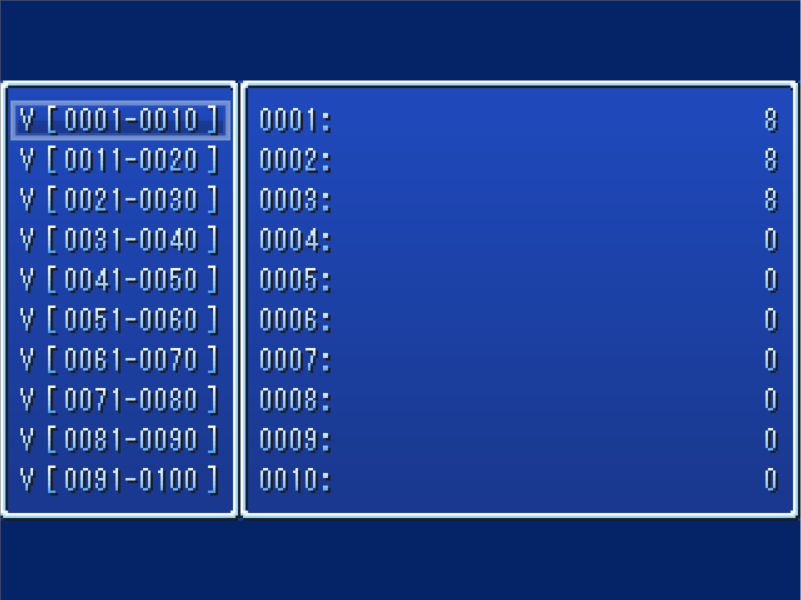
For the unbelievers here’s a screencap of the debug window (F9).
Here we assign three different numbers to three different variables:

We do this with a so-called „temporary array” that holds several values. This is what we wrote as [2, 4, 6].
Riddle
And now, Dear Readers, a riddle!

What value will v [1] take?
v[1] = [v[2] = 3, v[3] = 6, 3][2] + v[2] + v[3]
v[1] will be set to 12. This is because the indexes of the „temporary array” are numbered from 0. At index 0 is v[2], under 1 is v[3], and under 2 is the number 3. This [2] means that the element at index 2 is being selected from the array.
You might think, okay, but why would I use it? Well, in Expression we can only enter one expression. The method presented below allows you to circumvent this limitation. This way we immediately set the values of the variables v[2] = 3 and v[3] = 6 and in addition we perform the operation and put its result into v[1] – (12).
Another thing that is definitely worth knowing is the fact that we can freely nest v[].

This achieves the same effect as using a Variable ID. So we do not refer directly to the value of the variable, but we get the value from the variable with this index. This only works with the latest (as of writing this tutorial) version of the Maniacs Patch, so if you’ve patched your games before, it’s possible you may need to do it again.
The && operator („and” operator)

Here we’re using the „temporary array” trick once again to arrange the variables for the example. The && operator works in such a way that if the value on the left is different from 0 then the result is the value on the right, and if the value on the left is 0 then the result is 0. So as a whole this expression will return 0 because v[2] + v[2] is 0.
Operator || („or” operator)

The || operator works differently. If the value on the left is not 0, it returns the value on the left, if the value on the left is 0, it returns the value on the right. In this case, the result will be 1.
Extra meat
Now with less logic and mathematical operations, and more useful functions:
- – changes the sign of a number or subtracts, if used between two numbers / variables;
- ! changes any variable different than 0 to 0, and changes variable 0 to 1. Works similarly for switches (0 to 1, 1 to 0);
- ~ bitwise negation;
- + adding;
- * multiplication;
- / integer division;
- % remainder from integer division;
- | bitwise „or”;
- & bitwise „and”;
- ^ bitwise „XOR”;
- << bitwise shift to the left;
- >> bitwise shift right;
- == equal to;
- ! = different;
- < smaller;
- > bigger;
- >= greater than or equal to;
- <= less than or equal to.
Enemy (id, type). Returns information about the enemy with the given id:
- 00: HP;
- 01: MP;
- 02: Max HP;
- 03: Max MP;
- 04: Attack;
- 05: Defense;
- 06: Magic;
- 07: Agility;
- 08: ID (from database);
- 09: ATB Gauge.
Misc (type):
- 00: Money;
- 01: Timer 1 Remaining Time
- 02: Number of heroes in the party;
- 03: Number of saves
- 04: Number of fights;
- 05: Number of wins;
- 06: Number of losses;
- 07: Number of escapes;
- 08: MIDI tick time;
- 09: Timer 2 Remaining Time
- 10: Date;
- 11: Time;
- 12: Number of frames elapsed (total);
- 13: Patch version.
Math:
- Pow (a, b) – raises a to the power b;
- Min (a, b) – the smaller of the two numbers;
- Max (a, b) – the greater of the two numbers;
- Abs (a) – absolute value;
- Sqrt (a, b) – square root of a multiplied by b;
- Sin (a, b, c) – the sine of a / b multiplied by c;
- Cos (a, b, c) – the cosine of a / b multiplied by c;
- Atan2 (a, b, c) – the arctangent of a / b multiplied by c;
- Clamp (a, b, c) – clamps the value of a to be no lower than b and no higher than c
- Condition? Value if True:Value if False – returns one of the two values depending on the condition;
- Rnd (a, b) – returns a random number between a and b (inclusive).
Item (id, type):
- 00: Is owned?;
- 01: Quantity.
Actor (id, type):
- 00: Level;
- 01: Experience;
- 02: HP;
- 03: MP;
- 04: Max HP;
- 05: Max MP;
- 06: Attack;
- 07: Defense;
- 08: Magic;
- 09: Agility;
- 10: Weapon ID;
- 11: Shield ID;
- 12: Helmet ID;
- 13: Armor ID;
- 14: Accessories ID;
- 15: ID from database;
- 16: ATB bar level.
Event (id, type):
- 00: Map ID;
- 01: Tile X Coordinate;
- 02: Tile Y Coordinate;
- 03: Direction;
- 04: X on screen;
- 05: Y on screen;
- 06: Event ID.
Dessert
The tutorial is based on the vexpr.txt text file (which comes with the patch itself) and my own experiences. In the next part we will deal with something more interesting, that is using things we have learned so far to build some mechanics, perhaps the field of view of enemies. By using the right tricks, we are able to include all the necessary operations on variables in one Expression field. Is it legible? Well, not really. However, for people familiar with maths and logic, it will definitely speed up the work but that’s not to say it’s in any way useless for ordinary RPG Maker users. Sometimes a well written one-liner is capable of doing the same job a chain of 10 regular Control Variable commands would.
Soul
The original article was translated by Michu and edited by Axer.